Skip to content

Strucsoft’s New Release for Revit 2026 – Version 2.43, Build 9484

Table of Contents

Get started with your free trial now

Automate design and fabrication with the industry's most comprehensive Revit® framing software.

Your workflows just got faster—we’ve rolled out Strucsoft for Revit 2026 (Version 2.43, Build 9484).

Our newest software release is designed to eliminate manual steps, improve model accuracy, and support scalable construction, from design through fabrication.

Download it today by heading to your client portal.

Create Tool Update & New Workflow

We’ve restructured the process for creating new panels from Revit walls to make it more intuitive and flexible:

Properties Preview Window:
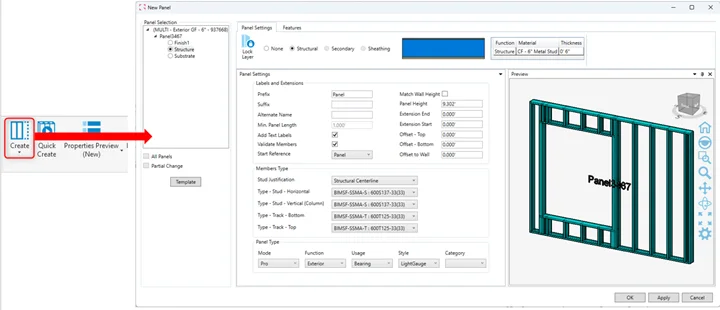
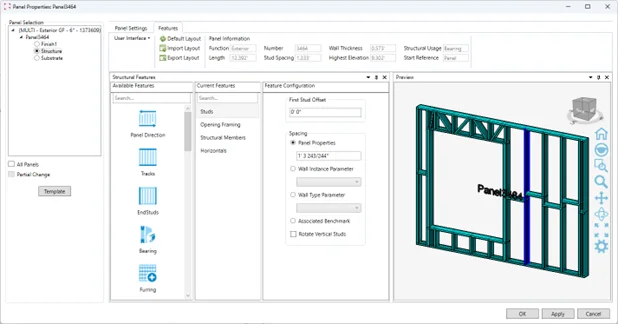
After selecting Revit wall(s) and clicking Create, a new Properties Preview window opens.

  • Allows toggling between layers to assign settings. Layers with no thickness are automatically filtered out.
  •  

Default Templates & Layer Management:

  • Structural layer defaults to the appropriate template (LGS for Suite/Metal/Metal+, Wood for Strucsoft Wood).
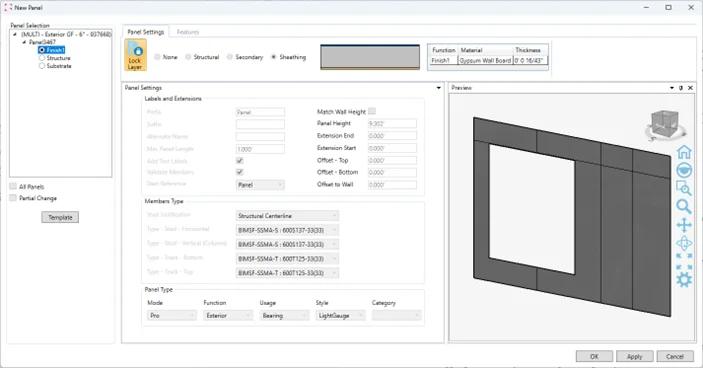
  • Secondary and Sheathing templates can be assigned to Finish and Substrate layers
      • Substrate and Finish layers will be automatically set to None by default, but you can assign a template to them before creating the panel.

Template Assignment:

  • Use the Template button to open the Template Manager and assign existing templates per layer.
  • If not assigning any existing template, the panel will generate using the Default Structural template.

Smart UI Behavior:

When working on Structural layer, Sheathing/Secondary options are disabled, and vice versa.

Existing Panels: 

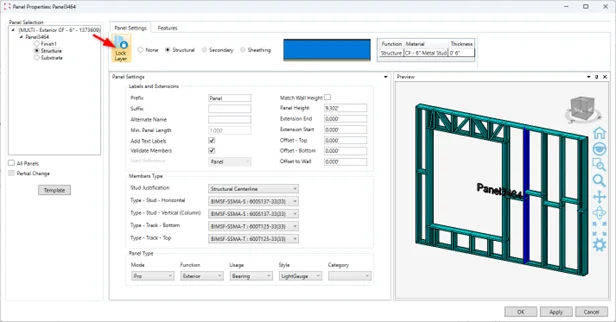
  • Selecting an existing panel and opening Properties Preview now shows panel name/number.
  • Modifications are layer-specific and maintain the same intuitive workflow.
  • Make sure to unlock the layer you would like to modify first.

Result: Panels are generated based on selected templates or default settings, ensuring consistency and flexibility.

Modify Structural Templates from Template Map

Modify Structural Templates directly from the Multilayer Template Map.
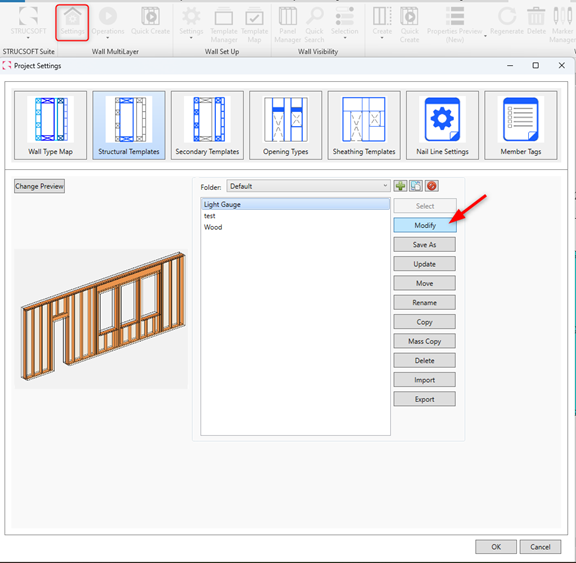
When clicking in Modify, the new Properties with Preview window will open. You can modify any features and update your template from this window, without the need to select a real panel in the project.
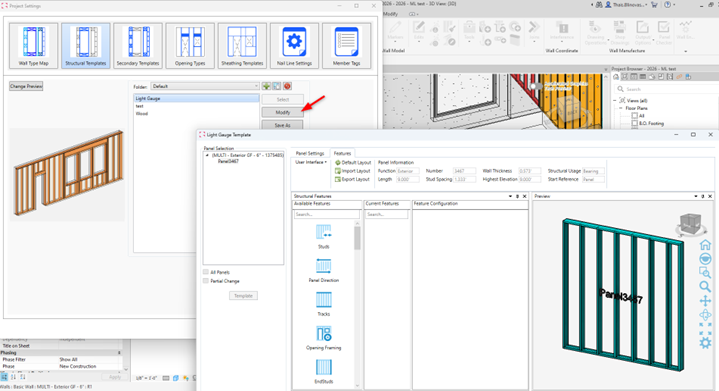
This update will make template creation and update easier and following the same principles of the Secondary and Sheathing templates.

Modify Generated Tool Updates

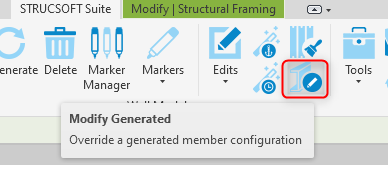
You can now move, add new members and/or add extensions without the need to regenerate the panel.

A warning will be prompted asking users if they wish to regenerate the panel or not.

Please keep in mind that if there is any blocking in the panel, the horizontal member will only be updated if panel is regenerated.
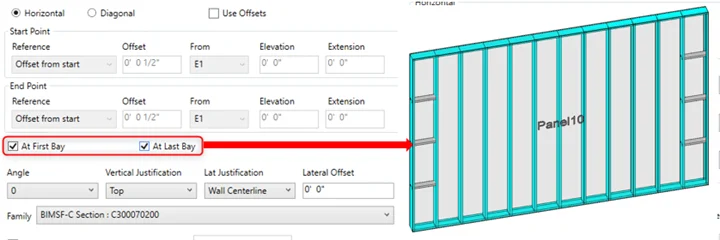
Add Setting Only to First and Last Bay of Panel

New option in Horizontals to add blocking/horizontal members to only first and/or last bay of your panel. The settings can be saved in your template.
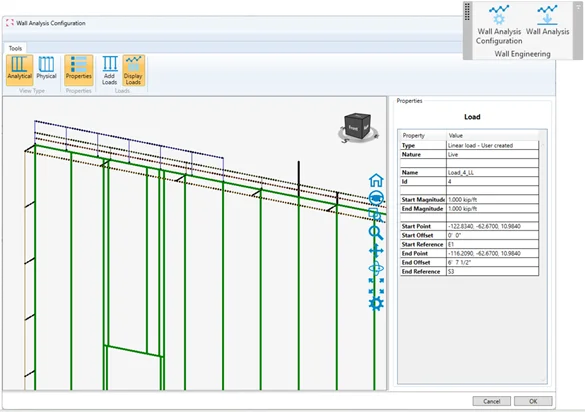
Wall Analysis

The Wall Analysis feature introduces the first step toward comprehensive design and analysis of wall panels within MWF. It allows users to:

  • Add Loads: Apply various load types, including live load, dead load, partial load, and wind load.
  • Visualize Analysis Lines: See analysis lines generated by MWF for better insight into structural performance.
  • Integration with Advanced Design: When running Wall Analysis, data is seamlessly transferred to Advanced Design for detailed calculations.

Note: Advanced Design must be installed to finalize wall analysis.

Currently, this feature supports simple panels for both wood and light gauge steel (LGS) without built-up sections.

The next phase will expand capabilities to handle complex panels, including built-up sections and bearing beams/headers.
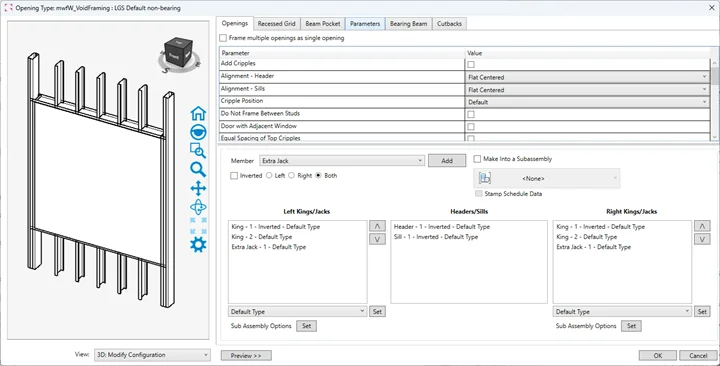
Opening Markers with Dynamic Preview

A live preview is now available for Default Opening Markers (Wood and LGS) and Truss Header Symmetrical V (LGS only).
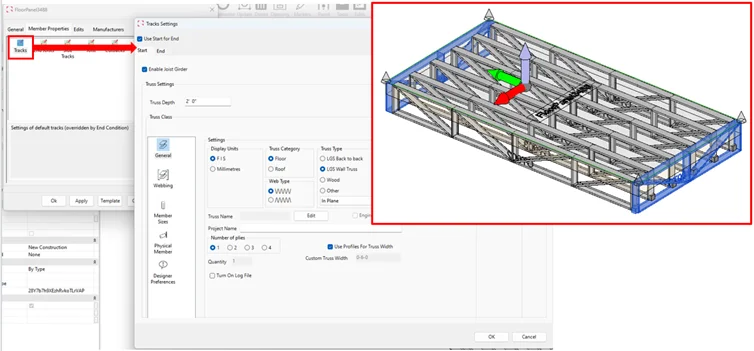
Floor Trusses Updates

New updates will enable users to automatically generate perpendicular floor trusses (Track Trusses) along the edges of a floor panel, following the floor profile where rim tracks would normally be placed. This enhancement ensures that floor truss panels include both joist trusses and track trusses, improving structural accuracy and customization.
New Floating Licenses

New and renewing customers will now receive a network cloud-based floating license. This license is automatically released when the user closes Revit, allowing it to be activated on another machine without requiring manual release or deactivation.

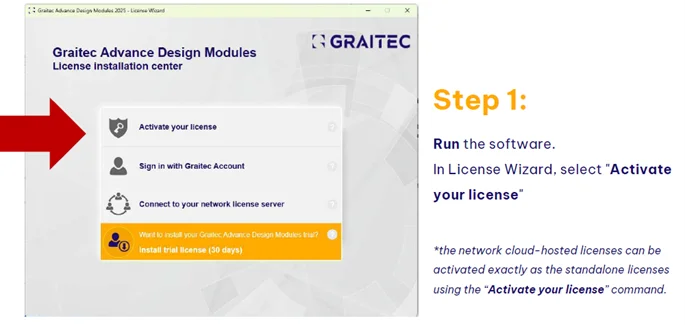
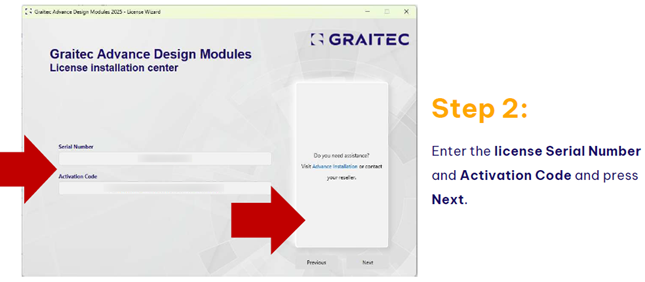
  1. LICENSES ACTIVATION PROCEDURE

For new or existing customers using the following Builds:

  • 9116 (Revit 2024/2025)
  • 9253 (Revit 2024/2025)
  • 9370 (Revit 2024/2025/2026) OR NEWER
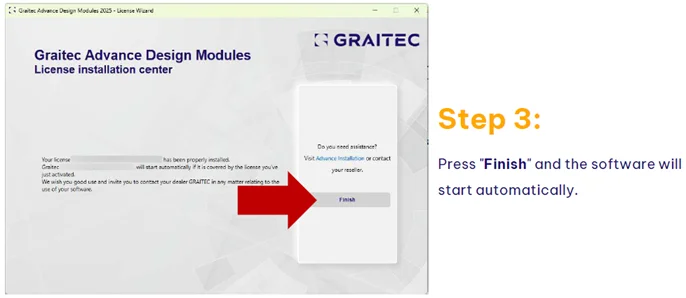
IMPORTANT: When upgrading to a new Strucsoft Build/Version, there is no need to activate your license again. After installing the new build, simply open Revit, click on any Strucsoft command and license will be activated. If you are prompted to activate your license again, follow Steps 1 to 3 above.

2. LICENSES PATCH PROCEDURE

For Customer using the following Builds:

  • 8560 (Revit 2024)
  • 8675 (Revit 2024)
  • 8740 (Revit 2024)
  • 8844 (Revit 2024)
  • 9020 (Revit 2024)
  1. Install Licensing Patch provided (do not uninstall the Strucsoft Build). If License Patch has not been provided, please contact our Technical Support at [email protected]
  2. Open Revit
  3. Use any command on the Strucsoft Ribbon
  4. If License Wizard is prompted, please follow the usual steps to activate your license (Refer to Steps 1 to 3 from Section I, License Activation Procedure).

For Customer using the following Builds:

  • 9021 (Revit 2025)

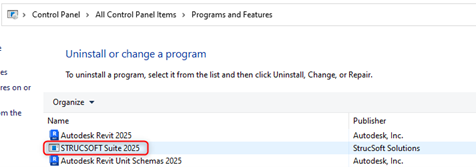
Perform a Clean Uninstall following these steps:

  1. Uninstall Strucsoft plug-in
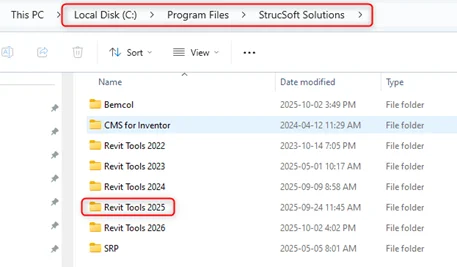
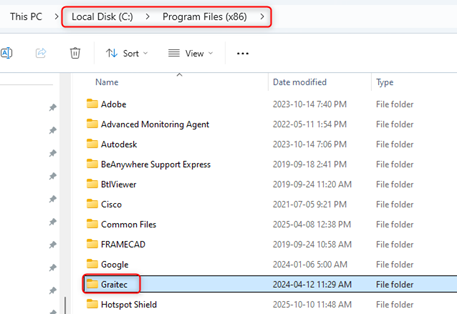
  2. Delete the following folders from C drive:
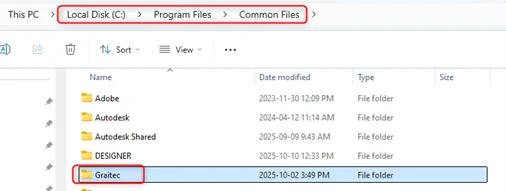


  1. Install the Hotfix for Build 9021 provided by Graitec. If it has not been sent to you, please contact our Technical Support at [email protected] ).
  2. Open Revit and follow Steps 1 to 3 from Section I of this document (License Activation Procedure).

Features Removed

The following features have been deprecated as part of an initiative to optimize workflows and minimize user confusion:

  • Selection Menu (Walls & Floors):

All features (except Select Panel Members and Select non-Framed Walls)

  • Tools menu (Walls):

New Panel Assembly

Edit Panel Assembly

Place Framing Zones

Add MMV Brace

Create Stud Pack

  • Markers Menu (Walls):

Subassembly

Panel Split Optimization

Top Side Marker

  • Edit Menu (Walls):

Panel Shell Settings

Create Panel Shell

  • Joins Menu (Walls):

Place Join with Preview

Find Dirty Panels

  • Properties (Walls):

Panel Shell

  • Interference Menu (Walls):

Set Opening Status

Select Openings by Status

Select Recessed Openings

Validate Openings

Review Openings

  • Output/Options Menu (Walls):

Curved Wall Report

  • Marker Manager (Walls):

Clash Data Mapping

  • Joist Clash Menu (Floors):

All Features

  • Tools Menu (Floors):

Add/Edit Lifting Points

Update Lifting Points

Calculate Panel Weight/CoG

Model Group Subassembly Manager

Indicate Drag Elements

  • Edits Menu (Floors):

Create Panel Shell

  • Properties (Floors):

Panel Shell

Modify Structural Templates directly from the Multilayer Template Map.

When clicking in Modify, the new Properties with Preview window will open. You can modify any features and update your template from this window, without the need to select a real panel in the project.

This update will make template creation and update easier and following the same principles of the Secondary and Sheathing templates.
Experience the New Release?

This release takes another major step forward in accuracy, efficiency, and collaboration for the framing industry. From the groundbreaking Panel Checker to streamlined Modular tools and improved Shop Drawing workflows, Strucsoft is building the foundation for a smarter, AI-powered future in construction.

Looking to share feedback or suggest new features? Head over to Graitec Advantage and drop us a message!

Articles You May be Interested In

Some of our international clients that use our software

Sign up for a free demo

Our experts will walk you through:

How to implement Strucsoft into your existing project life cycle.

How to navigate around the Revit® and Strucsoft user interfaces.

How to access training material such as guides, e-books and the help center.

Get started

Download your free product brochure

Download your free product brochure

Download your free product brochure

Download your free product brochure

Download your free product brochure

Download your free product brochure

Before you go!
Stay in the know.

In a hurry? Sign up to our newsletter and stay on top of the latest news and insights from the industry’s leading developer of Revit framing software. Sign up today!