Strucsoft Wood Quick Start Guide
Date
Duration
Speaker

Genevieve Parent
Technical Consultant
Watch the recording
What’s the webinar about?
If you’ve opened Strucsoft Wood for the first time and aren’t sure where to begin, this is the webinar for you. This quick start guide walks users both new and returning through the complete core workflow — from loading data and framing your first wall, to building custom templates, setting up a template map, and applying markers for complex openings. Rather than just clicking through menus, you’ll watch a real model come together step by step, with practical decisions explained along the way. By the end, you’ll have a clear, repeatable process for going from a bare Revit model to a cleanly framed project with confidence.
What you’ll learn
- How to properly set up Strucsoft Wood before framing
- How to build and save custom framing templates
- How to use Template Maps and Quick Create for full-level framing
- How to configure markers for custom opening conditions and clean up corner joins
Read the full video transcript
Hi, for today’s webinar, we’re going to be reviewing the quick start guide to MWF Pro Wood (now Strucsoft Wood). My name is Genevieve, and I’m part of the support tech team from Graitec. We’re going to be using Revit year 2024 with MWF (now Strucsoft Wood) build 8740.
To start, we’re going to go over some project exploration. We’re going to model a wall using MWF (now Strucsoft) default templates. We’re going to be visiting the panel properties and what goes on inside them. We’re going to be regenerating and deleting panels, exploring marker managers, creating custom templates, and creating a template map to make everything go easier. We’re going to be using quick create features, and then join.
If you’re a first-time user of MWF (now Strucsoft Wood) and it’s the first time you get to see how this is used — whether or not you’ve had a trial or demo — this will give you a solid idea of where to start. I’m just going to close this cover page.
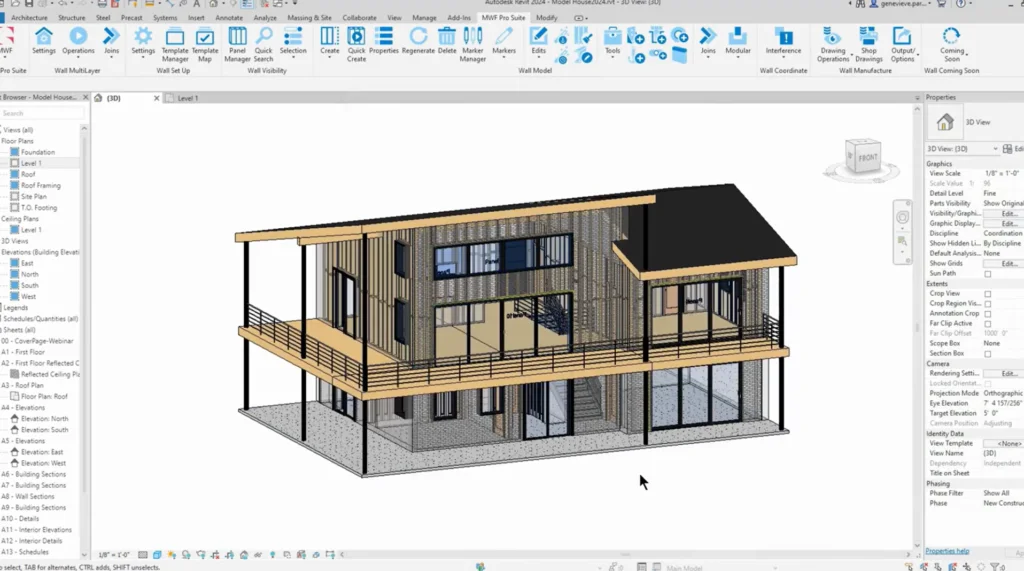
We start with a model. There’s no presets in this project, and I closed off all the furniture to make it easier to work with. We’re focusing on MWF (now Strucsoft)’s out-of-the-box templates, and we’re going to walk through the core loop. If you have a free trial, this will help you quickly navigate and avoid feeling lost.
To start, we have our MWF (now Strucsoft Wood) wall tab already open. If I show all the modules, we have walls in blue, floors/ceilings/roofs in green, and trusses in red and purple. Going back to the wall module, we also have links to tutorials, YouTube videos, and documentation.
First things first — blank project, nothing going on. I want to go to Settings, located in the wall setup. In Load Data, we bring in all framing components and all MWF (now Strucsoft) components. This ensures everything loads correctly — all the default templates that come out of the box. If you skip this step, some features may appear empty. Always perform this step first.
If you’re setting up a long-term Revit template, you would likely only need to do this once.
Next, I’m going to insert some families. I go to Insert → Load Family, scroll down to MWF (now Strucsoft), open Imperial → Standards → Dimensional Lumber, and load some main family members. If they’re already loaded, overriding doesn’t matter.
Let’s look at the model. I’ll open a wall and check the layers — this one is multi-layer. For this webinar, I’m focusing on single‑layer walls. Keep the structural layer entirely within one core boundary for proper framing. If you receive a model with multiple layers inside the core, shift them up or down so only one structural layer exists. Everything looks good, so I’ll close that.
Moving to Level 1, this is our basic plan. I’m going to select some walls and isolate them to explore templates. I’ll copy a few exterior walls (2×4 and 2×6) aside and isolate one. I’ll add transparency so we can see inside.
With the wall selected, I go to Create. In the template selector, this is our default MWF (now Strucsoft Wood) template. These folders contain various templates. If you’re using wood, you’ll use the wood folder. I’ll choose the simplest one, set it as active, close, and click Create.
The properties panel opens automatically. Everything here is editable and can be saved into a template. I can access templates from here as well. I’ll close the template browser for now and inspect the default framing. It framed correctly inside the wall, but I see issues — the cutbacks aren’t ideal, and I have two top plates which I don’t need. Same with double headers and sills.
To fix this, select any part of the panel to reopen the properties. Here I can change horizontal, vertical, and track members. I also have structural and miscellaneous sections.
First, I disable the double top track using Tracks → Edit. Next, I adjust opening framing. In Opening Framing → Edit, we see mapping rule sets and condition maps (covered more in training), but today I’m sticking to openings. I apply settings to all openings and specify 2×6 headers/jacks/kings. I remove the extra header and sill using right-click → delete.
I apply these changes and preview. The framing looks good except for cutbacks. In Miscellaneous → Cutbacks → Edit, I adjust header and sill cutback rules to “inner king” and “flush inner,” apply changes, and check again. Much better.
To strengthen the wall, I’ll add horizontals. In Horizontals → Edit, I specify from first to last stud, structural centerline, 2×6 members, and a stagger offset. I apply and review — looks great.
This is now a clean, basic exterior wall setup. I save it as a template: “exterior 2×6.” Set as active and close.
Next, I apply this template to an interior 2×6 bearing wall. After creation, I add transparency. For prefab stability, I adjust the bottom track so it isn’t split. Then I save this template as “interior 2×6.”
Now I move to a 2×4 interior wall. I reuse the interior 2×6 template for speed, then switch all framing members to 2x4s in the properties panel. I also remove horizontals for this non-bearing wall. Then I save as “interior 2×4.”
Now we have three templates: exterior 2×6, interior 2×6, and interior 2×4.
Now I unframe the test walls using MWF (now Strucsoft) Delete (don’t use regular delete). Once cleared, I delete the walls themselves and unhide everything to ensure nothing is stuck behind the scenes.
Back in the project, I now create a Template Map. Template maps are the magic of MWF (now Strucsoft)—they let you automatically assign templates to Revit wall types, and you can export/import them across projects. I assign exterior walls to the exterior 2×6 template, and interiors to either 2×6 or 2×4, then save.
To visualize templates better, I add transparency across all walls via Visibility Graphics. Now everything is ready for full-level framing.
I select several walls and use Quick Create, which frames all selected walls according to the template map. Time varies based on project size. The panels generate cleanly and look great in plan and 3D.
Next, I explore marker managers to create stronger headers for large openings. I isolate a wall, open Marker Manager, and explore default out-of-the-box markers. I duplicate a marker, set header alignment, adjust kings and sills, and change headers to 2×8. I rename this marker.
Then I duplicate it again to create a 2×10 version with stronger jacks. None are applied yet — I mass-select windows and assign the correct markers through MWF → Markers. Regenerating the panel updates the framing immediately. Any wall movement or opening size change just requires another regenerate.
If needed, I can modify a marker directly through the properties panel without reopening Marker Manager — just adjust values and regenerate.
Next, I apply 2×10 markers to several other openings. Regenerate again and the entire level updates.
Finally, I fix joins. Some corners look messy. In MWF (now Strucsoft) → Joins → Place Join, I select a clean corner join. Auto-join rules also exist for whole-project automation (covered more deeply in training). The join updates cleanly. You can also change which wall is the main wall through “Set Main Wall.”
This completes the demonstration. With default templates, custom templates, template maps, markers, and joins, you can go from a bare model to a neatly structured framing setup quickly.
Any questions, feel free to contact support or reach out. Have a great day, and thank you for your time.
Some of our international clients that use our software